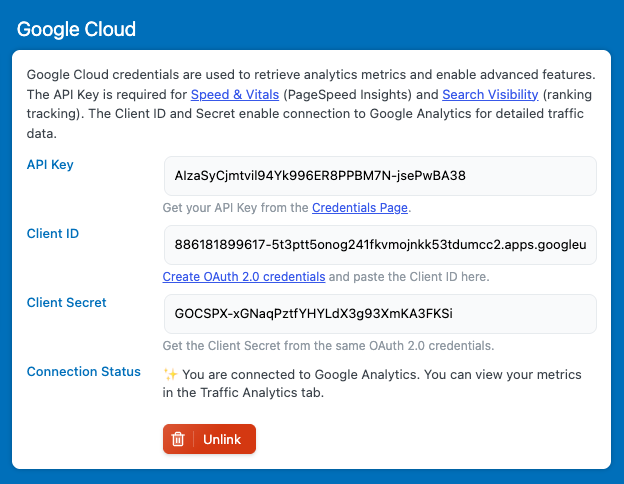
First, create a new project if you don’t already have one set up. If you already do, you can skip ahead to the final step, where you simply need to copy and paste your credentials.
To create a new project, click here: https://console.cloud.google.com/projectcreate
To view your existing projects and credentials, click here: https://console.cloud.google.com/apis/credentials
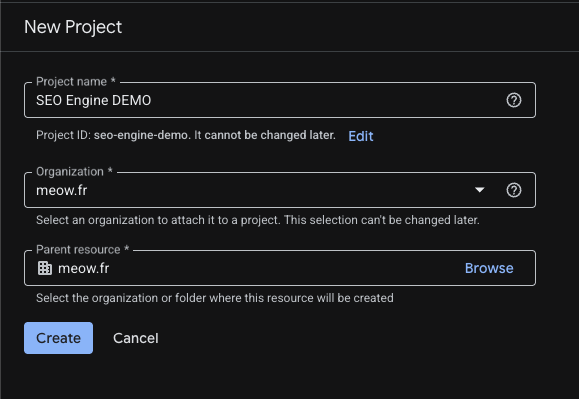
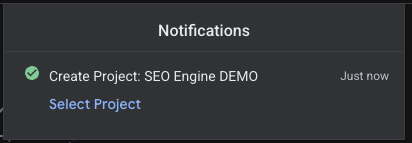
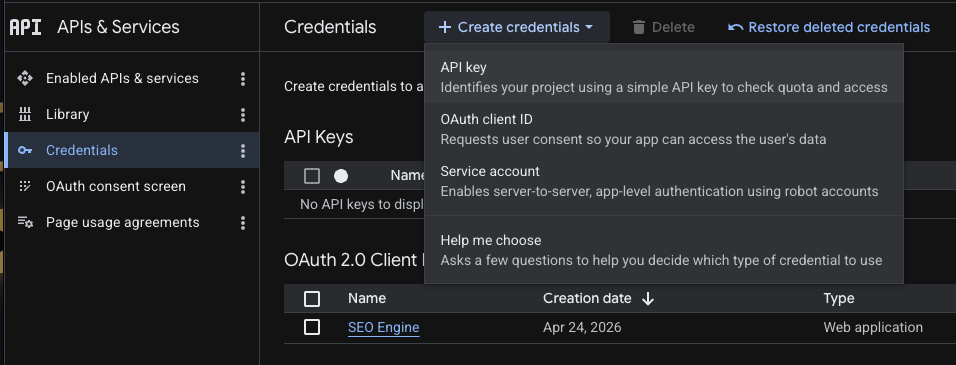
Once your project is created, go to the Credentials section and click “Create Credentials”.
You’ll need to create both an OAuth client and an API key. Let’s start with the OAuth setup first.
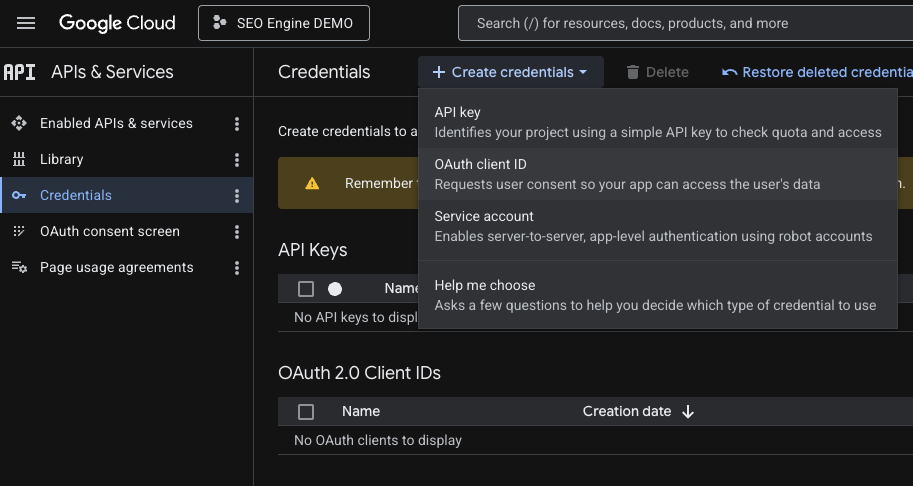
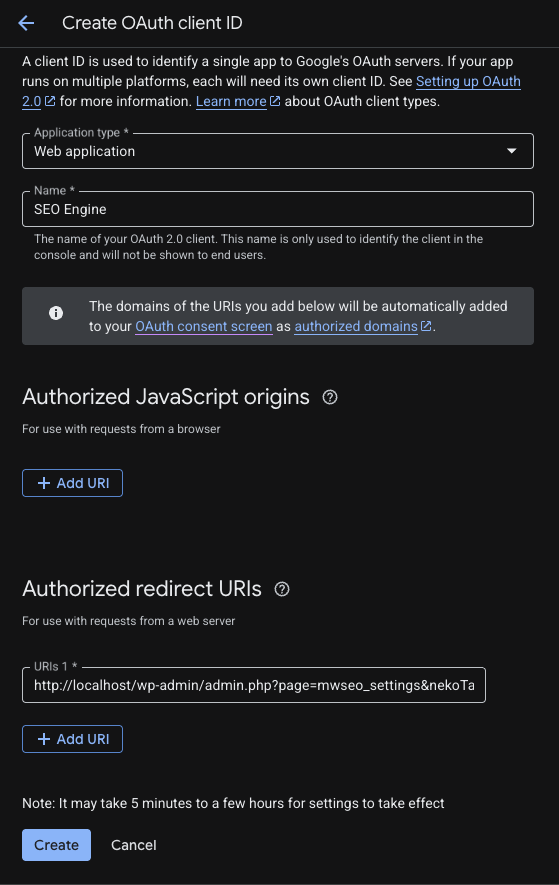
Complete the form with your own information. Ans set the redirect URL to the url shown in the SEO Engine settings.

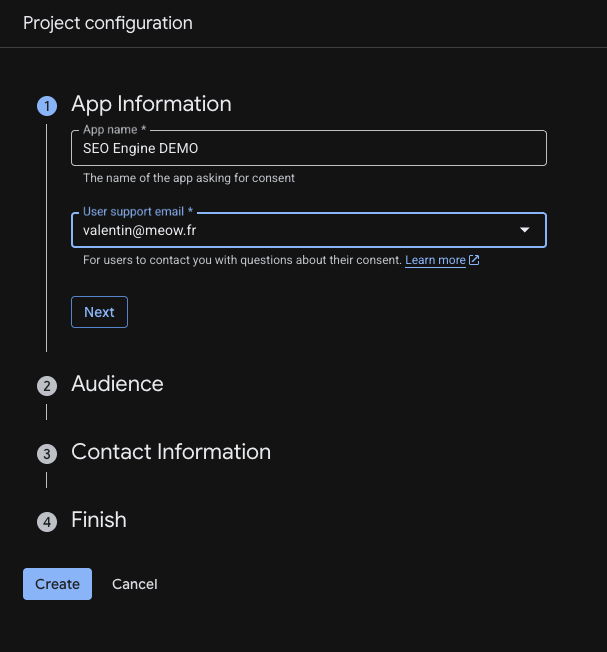
If you’re creating a brand new project, you’ll first be asked to configure it. Fill in the required details, set the user type to “Internal”, and then proceed with the steps above.
Then let’s create the API Key.
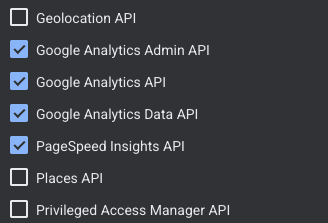
Make sure you select all the APIs you intend to use. If you don’t see them, it means they haven’t been enabled for your project yet.
Go to Google API Services and enable the APIs you need, most likely Analytics and PageSpeed if you’re using SEO Engine.
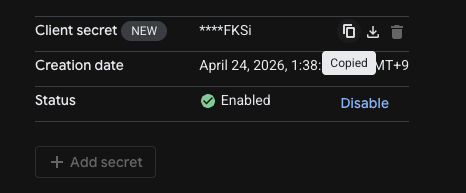
Now that you have your API key, go back to the Credentials page and open your OAuth client. From there, copy and paste both the Client ID and the Client Secret.

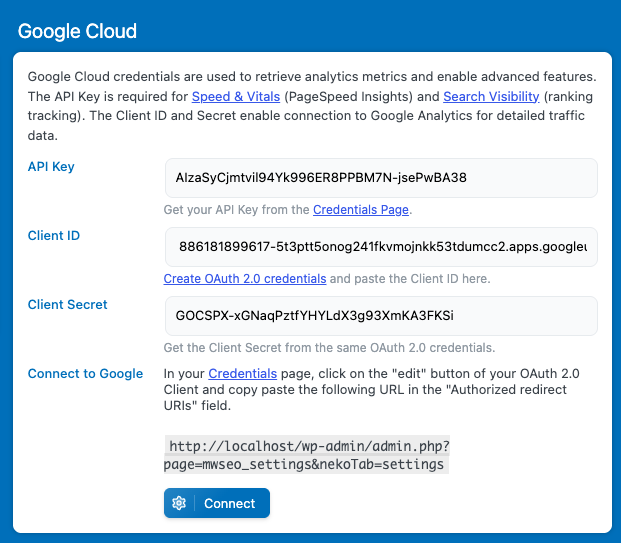
Now paste all these values into the Google Cloud settings in SEO Engine and click Connect.
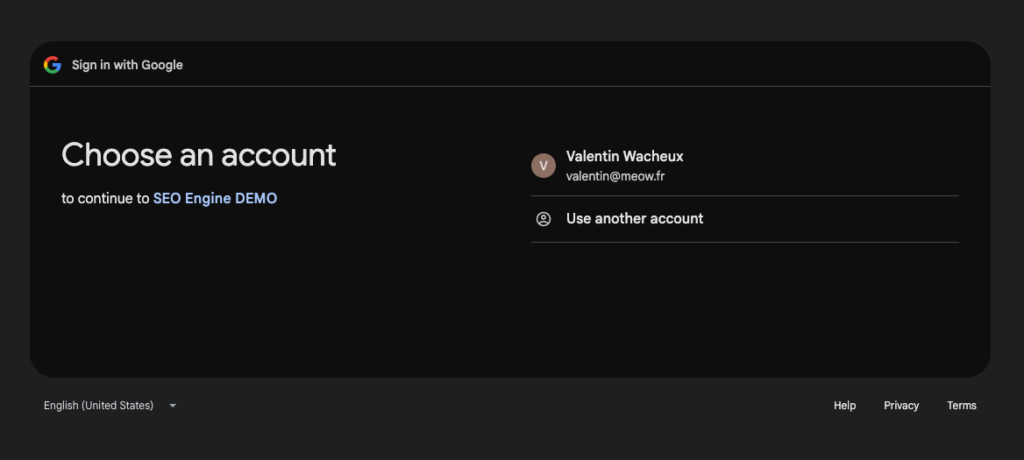
Once the OAuth screen appears, make sure to use the exact same Google account that is associated with your project.
If you use a different account, you may see an error or a warning indicating that the application is not safe.
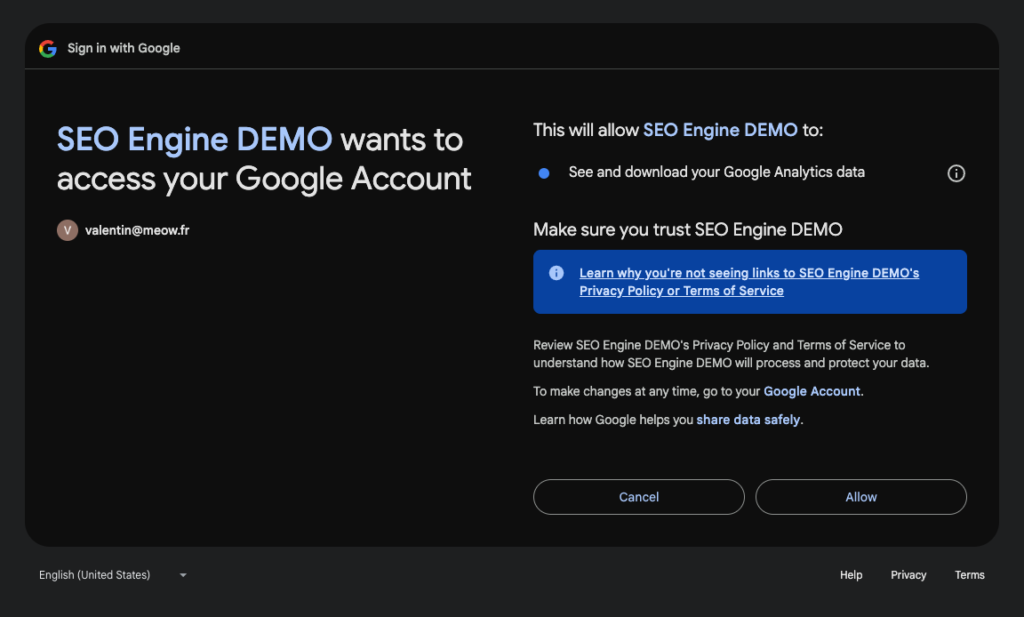
You’ll then be redirected back to the SEO Engine settings, where you should see the connection status indicating that it was successful.