You can also trigger the AUTO renaming automatically on specific events, such as when an attachment or post is updated, or when a new file is uploaded.
On Upload
Note that the “On Upload” methods are distinct from the standard AUTO renaming process. For example, you can’t rename files based on the post title at upload time due to WordPress limitations. In such cases, you should instead trigger the AUTO rename on post save, ensuring the filename can properly use post-related information once it’s available.
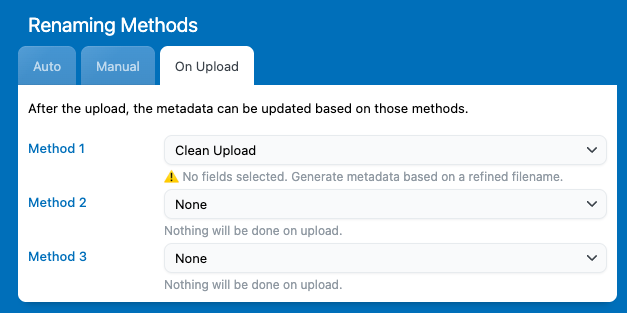
In Settings → Renaming Methods → On Upload, you can configure up to # methods for automatic renaming when files are uploaded. If one method fails, Media File Renamer will automatically try the next one in order.
Here are the available options:
- Clean Upload: Breaks the filename into readable parts to generate metadata — for example, this-is-my-file.jpg becomes This Is My File.
- AI Vision: Uses AI to analyze the image content and generate appropriate metadata.
- EXIF Title: Extracts the title from the file’s EXIF data (if available) and uses it as the filename or metadata.
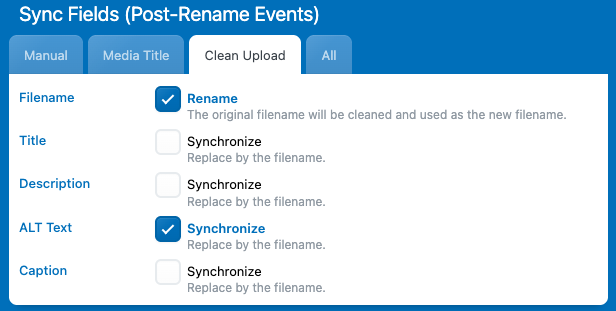
If you see a warning that says “No fields selected”, it means that no metadata fields have been defined for the chosen method. To fix this, go to the section just below called “Sync Event”, open the tab related to your selected method, and check the fields you want to be automatically updated when this event is triggered.
On Attachment Update
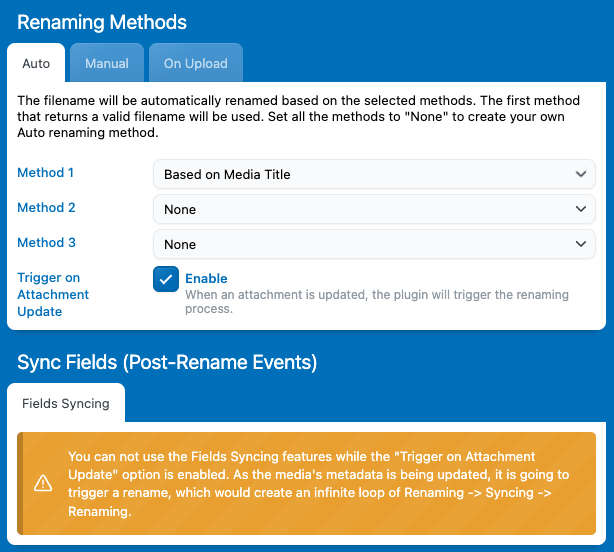
When an attachment (media) is updated, for example, if you change its title or any related detail, it can automatically trigger your AUTO renaming method to update the filename accordingly.
To enable this behavior, go to the Renaming Methods section in the settings and activate the option for renaming on attachment update.
On Post Save
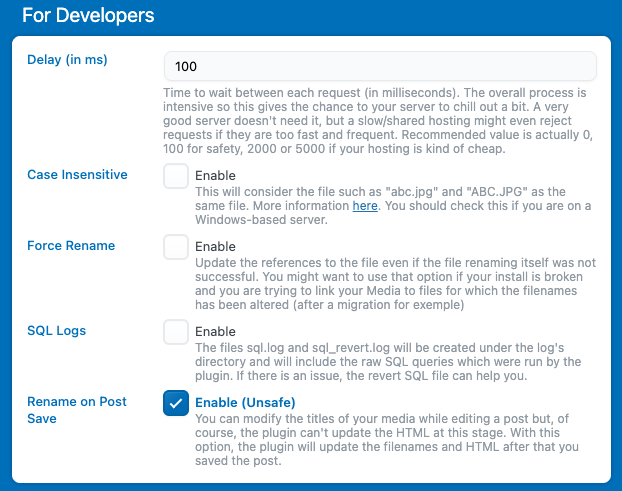
You can also enable the On Post Save event. When this option is active, every time you save a post, Media File Renamer will automatically check all the attachments linked to that post. For each of these related media files, it will then trigger the AUTO rename event.
Go to Settings → Advanced → For Developers → Rename on Post Save to enable this option.
However, keep in mind that this feature is considered unsafe. It attempts to modify filenames and update references while a post is being saved, which can sometimes lead to unexpected results or broken links. For this reason, it’s generally recommended to rename your files afterward using the dashboard instead, where the process is more controlled and reliable.