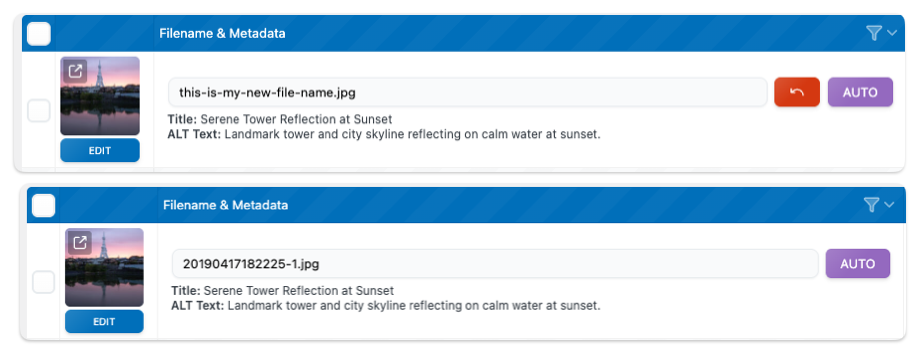
Once you rename a file, you can always revert it to its original name. This is especially useful if you made a mistake or if the renaming caused broken references that didn’t update correctly.
To enable this feature, go to Settings → Advanced → Features → Undo. Once activated, a red arrow button will appear next to your renamed files, allowing you to quickly restore the original filename with a single click.
This option doesn’t revert the filename to the last rename — it restores it all the way back to the original filename, as it was before any renaming was done.
If you want, you can keep a history of all filenames that have been processed for each media file. This history allows you to go back in time and restore any previous version of a filename with a single click.
Each recorded change includes a label indicating how the file was renamed, whether it was done manually, through AI Vision, updated automatically, or via another method, making it easy to track and manage your renaming history.
To enable this feature, go to Settings → Advanced → Features → History. This will add a new column in the Dashboard.

The history also keeps track of all metadata field changes. If you see a 🔄 icon, it means that this value was updated automatically because it was synced, not a manual change.