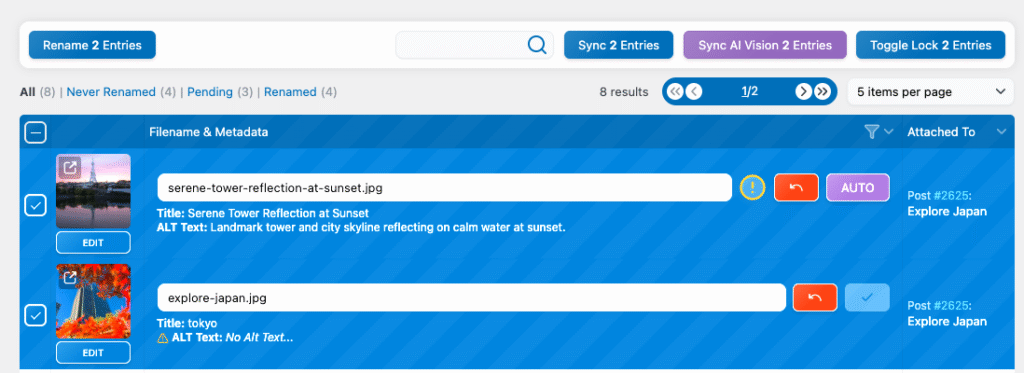
This is the core feature of Media File Renamer. You can choose one of the available AUTO rename methods and use it to rename your files automatically, either individually or in batches.
If none of the built-in methods fit your specific needs, you can explore the Advanced Renaming documentation to learn how to create your own custom renaming method, giving you full flexibility over how filenames are generated and managed.
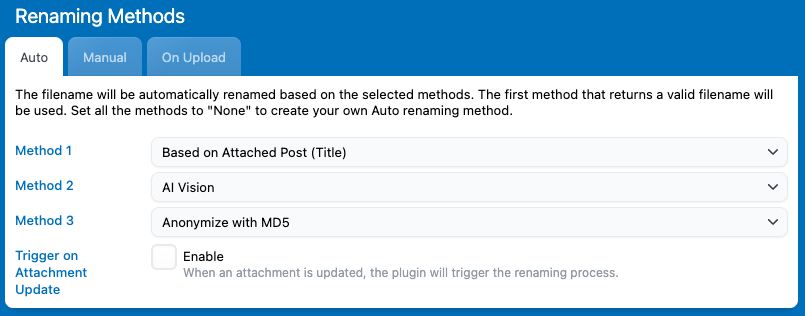
You can actually select up to three renaming methods in Media File Renamer. The plugin will process them in order: 1, 2, then 3 and use the first valid filename that’s returned.
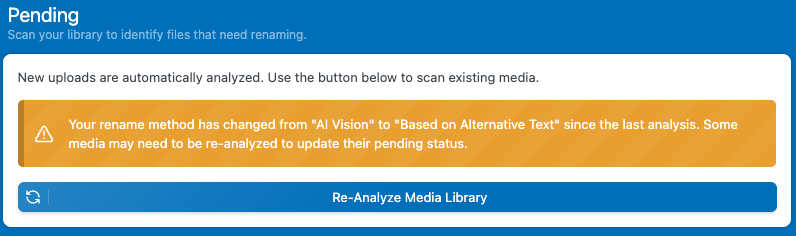
When you change your renaming method or set it up for the first time, make sure to analyze your Media Library.
This ensures that all media items in the dashboard are properly evaluated and displayed as pending if they match your new method.
This means that if one method fails or doesn’t produce a result, Media File Renamer will automatically move on to the next method in the list, ensuring that your file still gets renamed successfully.
Once you’ve selected your preferred AUTO renaming methods, the AUTO button in the dashboard will always follow that process. You can also hover over the AUTO button to preview the new filename that’s ready to be applied to your file, this gives you a quick way to review the result before actually triggering the rename.
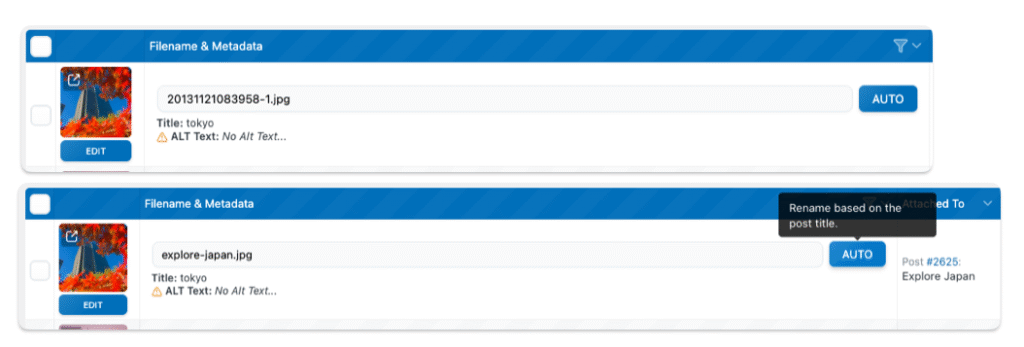
Here’s an example: in this case, you can see Method 2 being used because Method 1 failed.

Since Method 1 is based on the related post title, it can produce duplicate filenames when multiple media items share the same post title. Because filenames must be unique, this triggers an error, and Media File Renamer automatically switches to Method 2 (in this example, AI Vision) to generate a valid, unique filename instead.
If you want to automatically generate unique filenames using the same method (without relying on a fallback methods) check the Advanced Renaming documentation.
Now that your AUTO button is ready, go to the dashboard. You can either manually click the AUTO button for each media file, or select multiple items and use the “Rename X Entries” button to rename them all at once.
If you don’t select any media, you can click the “Rename All” button at the top, this will trigger the renaming process for all media files visible in the current tab you’re viewing.